If you are primarily working from home, you may not want your business address to appear on public view in Google Places or Maps.
To claim your Google Places page, you do need to include your business address – how else will Google know where you are based and send your verification postcard?
You can hide your address from public view once your Places Page has been verified. This short video shows you how.
Video:How To Hide A Business Address In Google Places
[trafficplayer_youtube_video width=”500″ height=”284″ src=”http://www.youtube.com/embed/iW5xQhOZ9mA?modestbranding=1&autohide=1&controls=0&hd=0&rel=0″ ][/trafficplayer_youtube_video]
You can choose to hide your address in Google Places!
Find out more about setting up your Google Places Page and getting your business found online, simply pop your name and best email address in the blue strip below and I’ll whizz your reports over to you.
Google Places – How To Hide Your Business Address Transcript
Hi it’s Jan at My Local Business Online. Today I want to address a question that has come up a few times at the weekend.
How can you claim your Google Places page and not show your business address on the Google Map?
You may want to do this if you are a mobile business, perhaps a mobile hairdresser or personal trainer and you serve customers at their own locations. If you are based at home, you may not want your business address showing on Google Maps. Now, we’ll argue the pro’s and cons of doing that another time.
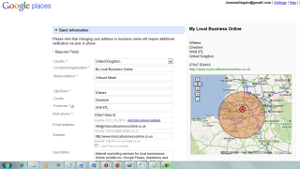
You can actually claim your Google Places page and not show your address. I’ve logged into my Google Places page here and the first thing you will notice is my maps marker is a ball rather than a balloon with a pointer. This is because I recently set my address as private just to see what impact that would have on people clicking through to my website. I have actually seen a slow decline on views and more people clicking on maps details rather than going to my website. I’m not too sure why they click on maps because it’s not actually there, but there you go!
Anyway, what you need to do is verify your PIN number, obviously I did that a long time ago. Click edit and scroll down the page to service areas and locations.
The first thing you want to click is, ‘Yes, this business serves customers at their locations’ and then click. ‘Do not show my business address on my Maps listing’.
You can then either add a list of areas served or distance from one location. To be honest, I haven’t found a great deal of difference changing these two. The standard number here is 20 miles, but you won’t show up with a marker for most business types for 20 miles. Google Places is very local, often only within your town.
So, that’s how easy it is. Go ahead, verify your PIN, scroll down the page and click, ‘Do not show my business address on Maps’. I’ll speak to you soon!
Google Places And Maps - How To Hide Your Business Address by Jan Kearney